Tile Palette
Open View > Window > Tile Palette. This window connects a tileset, a scene tilemap layer and the active viewport tool. Source selection in the atlas creates a brush stamp; Scene Select selects tiles already drawn in the scene. Choosing any tool button activates the tile cursor in Edit mode.
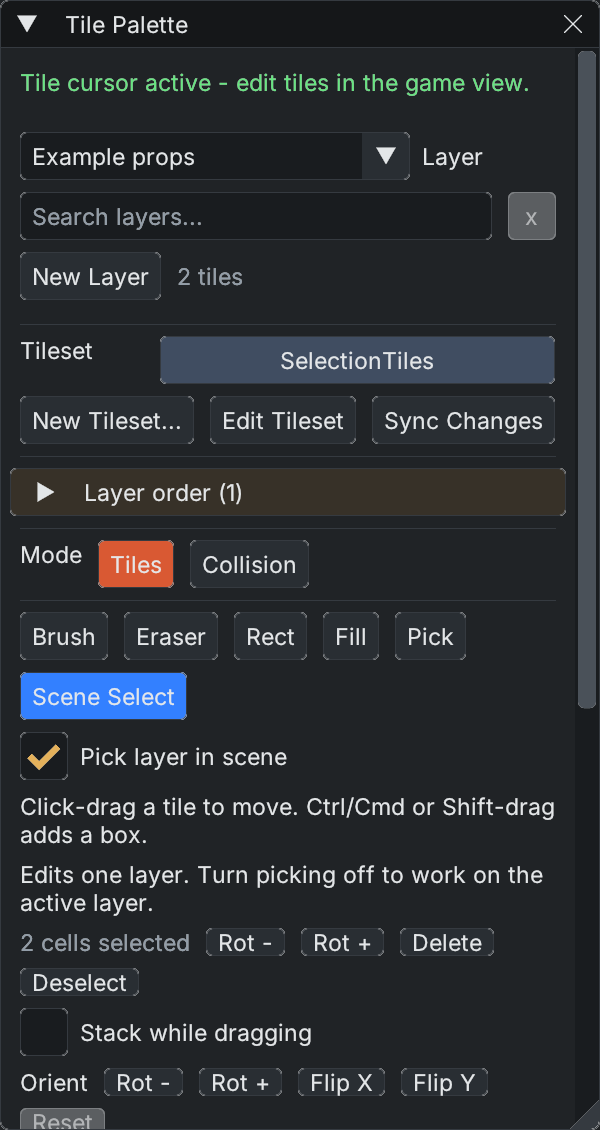
The active layer and scene tool are separate from the source atlas below. Tool and action buttons wrap when the window is narrow.
Paint a layer
- Choose an existing Layer, search for it by name, or create one with New Layer and a tileset.
- Choose one tile or drag a rectangle in the source atlas. Ctrl/Cmd adds source boxes; Ctrl/Cmd-clicking an already picked cell removes its box. Shift extends the last box. Gaps between separate boxes remain holes in the stamp.
- Choose Brush, then click or drag in the game view. A click places the stamp at the hovered cell. With Stack while dragging off, a drag steps by stamp dimensions and replaces painted cells.
- Save the scene to preserve its painted cells. Save changes to the shared tileset separately in its editor.
| Tool | Use |
|---|---|
| Brush | Stamp source tiles. Shift or right-drag erases. |
| Eraser | Clear cells using the stamp footprint. |
| Rect | Fill a dragged scene rectangle by repeating the source stamp. |
| Fill | Replace a contiguous region matching the clicked tile. |
| Pick | Sample a placed tile into the brush and return to Brush. |
| Scene Select | Select and move placed cells; see selection controls. |
With Stack while dragging on, transparent tiles can stack above existing tiles. Opaque tiles replace; fully blank tiles are skipped. Rot - / Rot +, Flip X / Flip Y, and Reset change the brush orientation. While the palette has focus, Q/E rotate the brush, Z/X flip it, and tool shortcuts appear in tooltips.
Layers, grid and collision
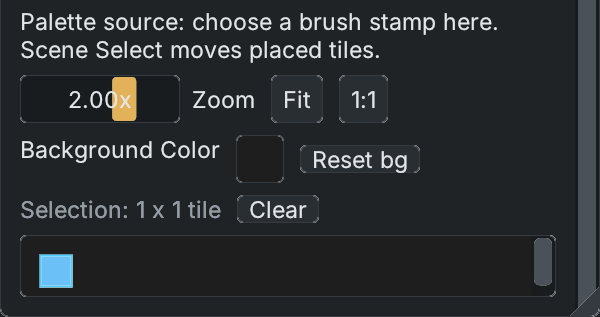
Source selection creates a 1×1 brush stamp. It does not select or move the cells already painted in the scene.
The layer selector decides where painting writes. Layer order manages front-to-back rendering; selecting multiple rows there changes render order, not the tile-selection scope. The grid follows the active layer's transform and tile size. Grid color/thickness and cursor thickness affect editing overlays; Always shows the tile grid outside tile mode.
Collision mode edits the active layer's collision mask. It does not replace source artwork. Scene Select carries existing tile stacks, orientation and collision together in either mode. See Scene tile selection for safe overlap, cancel and undo behavior.
An empty scene can stage a tileset before its first layer exists. The first paint creates a layer. Changing active layers clears placed-cell selection so a previous layer's selection cannot edit the new one. Narrow palettes wrap their tool buttons; resize or scroll the window to reach other options.
Related: Tilesets, Main Windows, Scenes and Prefabs.