Selecting and Moving Scene Tiles
Use Scene Select in the Tile Palette to move a prop or a drawn section in Edit mode. This edits placed tile cells on one layer. The source atlas selects a brush stamp; ordinary entity transform tools move the entire renderer entity.
Outside tile mode, double-clicking occupied tilemap artwork selects its layer entity for inspection. The viewport stays where you clicked, rather than jumping to the layer's shared origin. Use Scene Select to move individual cells.
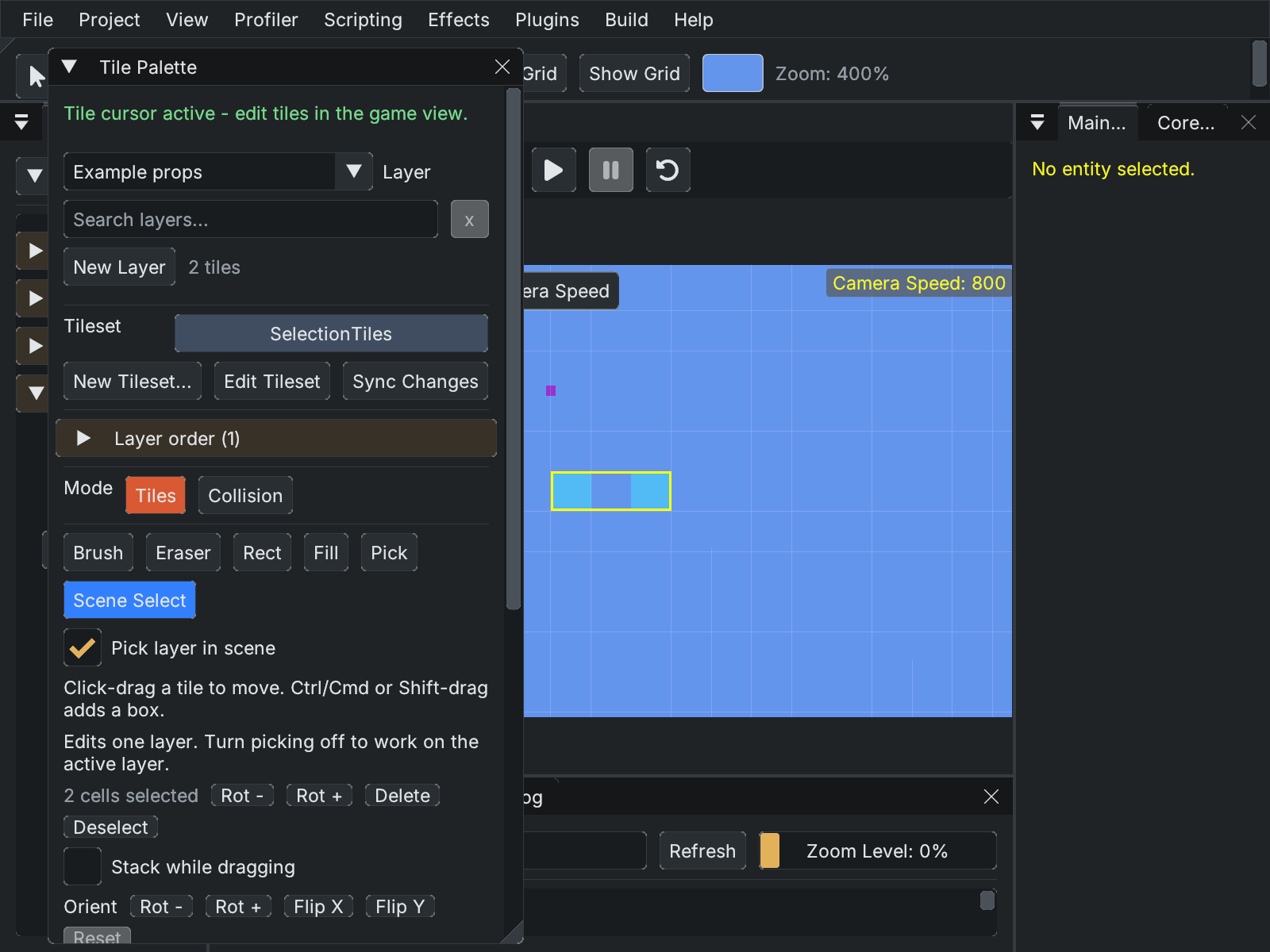
Example after a marquee move: both cyan cells moved together, preserving the empty gap between them. The palette reports two selected cells.
Select and move
- Choose Scene Select. Its button activates tile mode in the game view.
- With Pick layer in scene enabled, click-drag an occupied tile to pick its visible frontmost layer and move that cell immediately. A tilemap prop spanning several cells needs a marquee over those cells.
- Drag from empty space to select a rectangle. To start a box on occupied artwork, hold Ctrl/Cmd or Shift while dragging. These modifiers also add further cells or boxes on the same layer.
- Release to finish selection. Drag any selected occupied cell to translate the whole selection by whole cells. Blue outlines show selected cells; green outlines preview their destinations.
For a chair, marquee all chair cells and drag one of them. For a room section, choose the relevant layer, draw a box around its walls or props, then drag the selected section. Empty gaps inside the box stay empty and do not erase other destination cells.
Layer and overlap rules
Selection edits one layer at a time. Turn Pick layer in scene off and choose Layer explicitly to edit a lower layer behind visible artwork. Additive selection stays on that active layer. Hidden or disabled layers are excluded from automatic picking. The picker uses occupied cells, rather than the large bounding rectangle around a sparse tilemap.
A cell's complete stack, orientation and collision mask move together. Automatic collider generation follows the layer's Auto Build Colliders setting. A tile stacked within a cell is not independently selected. A move may overlap its own source cells safely. If any destination contains unrelated tiles or collision on the same layer, the entire move is blocked and the palette explains why. Nothing is overwritten and no undo entry is added. Other layers are unchanged.
Cancel, rotate, delete and undo
- Escape cancels a drag and clears selection without moving tiles. Leaving the game view cancels an unfinished selection gesture; releasing outside cannot apply a stale drag later.
- Deselect clears placed-cell selection. Choosing another layer or loading another scene clears it too.
- Rot - / Rot + rotate the selected region in quarter turns and rotate each tile's orientation. The same occupied-destination protection applies.
- Delete or Backspace removes selected cells and their existing collision. Text fields keep their normal key input.
- Each move, rotation or deletion is one scene undo step. Use the editor's configured Undo/Redo shortcuts (default Ctrl/Cmd+Z and Ctrl/Cmd+Y) or its undo/redo controls. Undo/redo restores cell data; move and rotation history also restores the selection coordinates on the same active layer.
Rectangular selection does not create box colliders. Save the scene after editing.