Main Windows
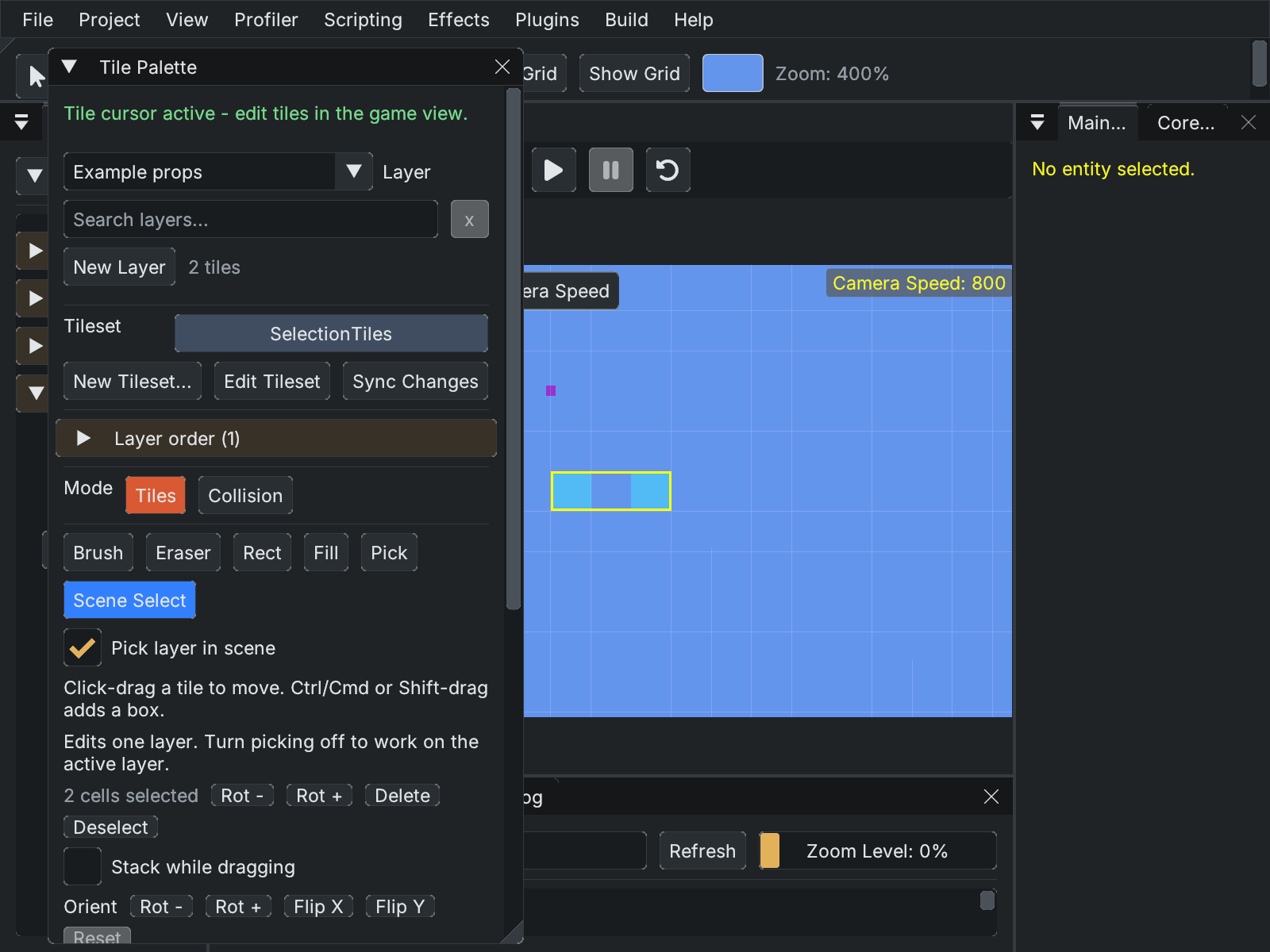
Example workspace: Scene Select is active, while the Inspector has no entity selected. Tile selection and entity selection are separate.
| Window | Purpose |
|---|---|
| Scene Graph | Entity hierarchy for the active scene. Create, rename, reparent, duplicate, and delete entities. Select an entity to open its inspector. |
| Inspector | Edits the selected entity's Transform and component fields. Component data is read and written through each component's Data property. |
| Asset Browser | Project file tree. Scenes and prefabs are discovered anywhere inside the project; Scenes/ and Prefabs/ are default creation folders. Drag a texture onto a SpriteRenderer field to assign it. Right-click for file actions; keyboard: Ctrl+C, Ctrl+V, Ctrl+D, Delete. |
| Game Viewport | The live MonoGame render target displayed as an ImGui image. The editor UI is rendered on top; the game content renders into the same window as a passthrough. |
| Editor Tools bar | Cursor/zoom mode toggle, audio mute toggle, and the Play / Stop / Pause / Reset button cluster. |
| Tile Palette | Picks the active tilemap layer, brush source and scene tile tools. Open from View > Window > Tile Palette. See Tile Palette. |
| Tileset Editor | Defines tile dimensions, source art, animation, terrain and collision metadata in a .vtileset. See Tilesets. |
| Build Game | Publishes a standalone game and controls per-scene Debug/Release inclusion. See Build Game and Scene Presets. |
| Aseprite | Connects source-art editing to Voltage. Open from View > Window > Aseprite; see Live Aseprite Integration. |
| Timeline Editor | Authors and previews sequences through a scene's Timeline Director. See Timeline Editor. |
| Animation Event Inspector | Edits events associated with sprite animation frames. See Animation Event Inspector. |
| Core Settings | Live engine switches and FPS graph, opened through Core Window. See Core Settings. |
| Data Asset | Edits shared .vasset settings separately from scenes. See Data Assets. |
| Plugin Manager | Project plugin installation, status and reload workflows. See Plugin Manager. |
| Debug Log | Shows editor and script diagnostics. Check it when an asset fails to load or a script fails to compile; see Hot Reload. |
Layouts and theme can be changed from the View menu. The current dock arrangement, tab order, active tabs, floating geometry and window visibility are saved automatically when the editor closes. See Editor Layouts for named snapshots and recovery.
The current default theme is Studio Graphite. View > Themes changes the theme; UI font, Code font, and Interface scale control readability independently. Drag a window tab to dock or undock it, and drag its border to resize it. View > Window restores a closed tool window. Scene Graph sections can be restored with its Scene Graph Sections menu.
For placement, use the cursor tools in Editor Tools. Entity transform tools affect an entire entity; Scene Select in the Tile Palette affects individual placed cells. See Scene tile selection for direct prop picking and moving a drawn section without moving its whole renderer.
The eye button in Editor Tools shows or hides debug overlays. Its dropdown has All and independent categories for Colliders, Sprite renderers, Tilemaps, Lights, UI, Other components, and Transform gizmos. Checked categories are visible; All shows or hides everything. The eye button temporarily hides your selected categories and restores them on the next click. Category choices persist as editor preferences and do not modify scenes. The collider category includes tilemap-generated collision shapes independently of tilemap bounds. Parent and component settings still apply.
With the Scene Graph focused in Edit mode, Up/Down selects the previous or next entity through the whole hierarchy, including collapsed children. Holding a key repeats. Navigation follows the selected entity even when the inspector is locked, expands its ancestors, and scrolls the selected row into view. Text fields keep their own arrow-key input.
In Edit mode, selecting an entity in the Scene Graph centers the camera on the combined bounds of its
renderers, colliders, and descendants. Tilemap layers use their painted cells rather than their shared
origin. Empty layers do not pull a populated group toward the origin; groups without content use their
leaf positions. Move Camera Here and gateway view.focus use the same content bounds.
The Inspector's Debug Render Enabled flag also gates every descendant. Turning a parent back on restores each child's own debug setting; it does not overwrite those settings or disable gameplay rendering.